Block Every Ad on Your Network: Self-Hosting AdGuard Home
Control your entire network's DNS with AdGuard Home. Block ads everywhere—no browser extensions needed. One setup, whole house protected.
I spent three years trying to block ads with browser extensions. Pi-hole. Pihole. More Pi-hole. Then one night, frustrated at ads leaking through on my phone, I realized: I shouldn’t have to install something on every device. I should just block it at the network level.
Enter AdGuard Home. DNS-level adblocking that works on every device the moment they connect to your network. No setup required on the client side. Just plug it in and watch ads vanish.
Why Network-Level DNS Blocking Actually Matters
Here’s the thing most people don’t realize: ads aren’t the only thing hiding in DNS requests.
Every time your phone loads a website, it asks your ISP (or whoever controls your DNS) “hey, where is example.com?” That request gets logged. Your ISP knows everywhere you go. Advertisers know. Governments know.
With AdGuard Home:
- Ads get blocked before they ever reach your device. Not just visual ads—tracking pixels, analytics, malware domains, all of it.
- Your DNS requests stay private. They’re either encrypted locally or sent to a privacy-focused resolver (like Cloudflare’s 1.1.1.1 or Quad9).
- It works on every device. Your laptop, phone, smart TV, IoT garbage—all protected instantly. No browser extensions. No apps to install.
- You control the rules. Family filter? Block gambling sites? Custom blocklists? All yours.
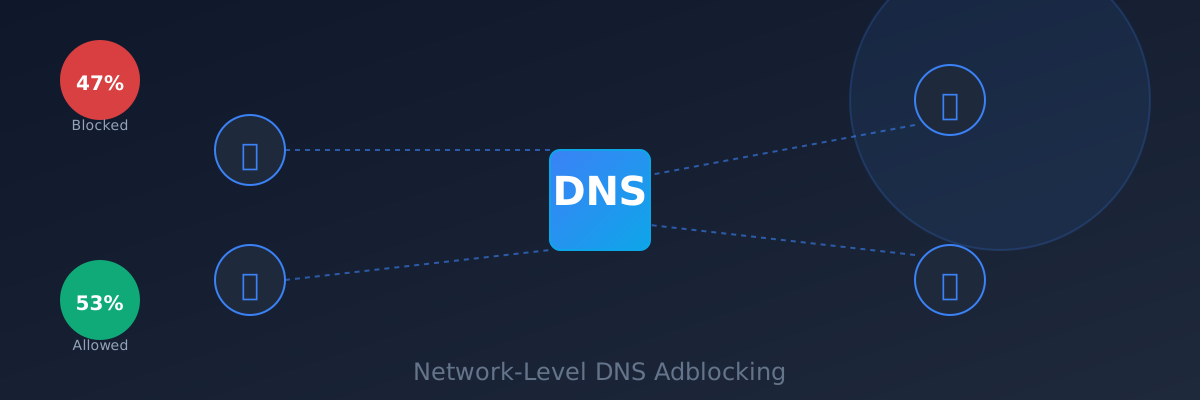
I set this up in my homelab about two years ago, and the moment I did, I realized how much junk was hitting my network. The first week’s stats were genuinely shocking: 47% of DNS requests were being blocked. Mostly trackers and ad networks I’d never heard of.
What You’ll Need
- A machine that can run 24/7 (Raspberry Pi, old laptop, VPS, Docker container—whatever)
- About 200 MB of RAM
- A static IP on your network (or a Docker container with a fixed port)
- Basic familiarity with your router
That’s literally it.
Deploy AdGuard Home with Docker
This is the easiest path. One compose file, done.
version: '3.8'

services:
  adguard:
    image: adguard/adguardhome:latest
    container_name: adguard-home
    restart: unless-stopped
    ports:
      - "53:53/tcp"
      - "53:53/udp"
      - "67:67/udp"
      - "68:68/udp"
      - "3000:3000/tcp"
    volumes:
      - ./work:/opt/adguardhome/work
      - ./conf:/opt/adguardhome/conf
    environment:
      - TZ=Europe/Paris
Run it:
docker compose up -dOpen your browser to http://localhost:3000 and walk through the setup wizard. Choose “Install.”
Post-Install Configuration
Once you’re in the dashboard:
- Set your upstream DNS servers. I use Quad9 (9.9.9.9) because they’re privacy-focused and they block malware. Cloudflare (1.1.1.1) is faster but logs a bit more.
- Enable Safe Browsing. Free tier, blocks malware sites automatically.
- Add blocklists. The defaults are good, but I add these:
https://raw.githubusercontent.com/StevenBlack/hosts/master/hostshttps://adguardteam.github.io/AdGuardSDNSFilter/Filters/filter.txt
Fair warning: Adding too many lists will slow down queries. Start with 3-5 and test. You can always add more.
Point Your Router’s DNS to AdGuard
This is where the magic happens. Now that AdGuard is running, you need to tell every device on your network “use this for DNS.”
Go into your router settings (usually 192.168.1.1 or 192.168.0.1):
- Find DHCP Settings or DNS Configuration
- Replace your ISP’s DNS with AdGuard’s IP (whatever machine it’s running on)
- Save and reboot the router
If your router won’t let you set a custom DNS (some ISP-provided routers are locked down), no worries—you can manually set it on individual devices:
- iPhone: Settings → WiFi → Info → DNS → Manual → Add AdGuard’s IP
- Android: Settings → Network & Internet → WiFi → Advanced → DNS → Manual
- Linux: Edit
/etc/resolv.confand addnameserver 192.168.1.X
The Filter Rules Game
Here’s where AdGuard Home gets really powerful: custom filter rules. You can block entire categories or write regex patterns.
Basic rules are simple:
example.com
ads.example.com
||tracker.example.com^
Those block:
- Any request to
example.com - The specific subdomain
ads.example.com tracker.example.com(the||means “domain boundary”)
But you can also do whitelisting:
@@||safe-ads.example.com^That tells AdGuard “I know this is an ad domain, but don’t block it.”
Fair warning: If you go overboard with rules, DNS resolution will slow down. I’ve got about 800 rules and it’s imperceptible. Anything over 5,000 and you’ll start noticing latency.
I made this mistake my first month—added like 15 blocklists and suddenly browsing felt sluggish. Lesson learned.
What Gets Blocked (You’ll Be Surprised)
First time I ran AdGuard, I pulled up the query log and just… stared. Here’s what the statistics looked like after one week:
- 47% blocked (trackers, ads, known-bad domains)
- 53% allowed (actual content you want)
Some examples of things blocked:
doubleclick.net(Google ads)googleadservices.com(Google tracking)facebook.com(if you add Facebook’s trackers to your blocklist)segment.com(analytics)- Various malware C&C servers
Your results will depend on what blocklists you add and what sites you visit. Tech blogs? Lots of ads. News sites? Loads of trackers. Personal blogs? Probably mostly clean.
The Downsides (Be Honest About Them)
Some sites break. This is rare, but it happens. A site relies on an ad network for CSS or fonts or something stupid, and suddenly it looks broken. You either:
- Add an exception for that domain
- Find a different site
- Accept the broken layout
YouTube still gets through. YouTube’s ads come from the same domain as the content (youtube.com). You can’t block one without blocking the other. There are hacks (like blocking ytimg.com), but they’re imperfect. If YouTube ads bother you, use a browser extension on top of AdGuard.
CNAME cloaking. Advertisers are getting smarter. They hide ad servers behind your own domain name. AdGuard has protection for this (CNAME uncloaking), but it’s not perfect.
You become the support team. “Why can’t I access this site?” becomes your problem now.
Monitoring & Maintenance
AdGuard Home’s dashboard is gorgeous. Real-time query log, stats by domain, blocked requests over time. I check it maybe once a week just to see what’s going on.
You don’t need to do much maintenance—it Just Works™. But I do:
- Check the query log weekly for anything surprising
- Review blocked domains monthly to see patterns
- Update blocklists automatically (AdGuard can do this on a schedule)
- Backup your config (the
conf/folder) so you don’t lose your rules if the container dies
The Real Win
Here’s what changed for me after setting up AdGuard Home:
My phone is faster. My network stats show 40-50% less bandwidth usage just from blocking ad requests. Sites load noticeably quicker because the browser isn’t waiting for ad networks to respond.
But honestly? The bigger win is control. Your ISP can’t see what you’re browsing. Advertisers can’t build a profile from your DNS requests. You’re not helpless against malware domains—they’re blocked at the edge before they even reach your devices.
Once you realize how much junk is hitting your network, you can’t unsee it. And once you block it, you won’t go back.
Next Steps
- Spin up the Docker container
- Point your router’s DNS at it
- Watch the query log for an hour and just… observe
- Adjust your blocklists based on what you see
- Profit
Fair warning though: If you live with someone else, they might appreciate the faster browsing. Or they might hate “why doesn’t this site load anymore?” Either way, it’s a conversation worth having.
Deployed on a Raspberry Pi 4 (2GB RAM) in February 2024. Still running. Blocks about 50,000 requests per day. Never looked back.
Stay in the loop 📬
Get self-hosting tutorials, tool reviews, and infrastructure tips delivered to your inbox. No spam, unsubscribe anytime.
Join 0 self-hosters. Free forever.