How to Backup Your Self-Hosted Apps: Complete Guide to Data Protection
Learn how to properly backup your self-hosted applications with Docker volumes, databases, and off-site strategies. Protect your data from loss.
Self-hosting gives you control over your data. But with great power comes great responsibility — you’re now in charge of protecting that data from loss.
Hardware fails. Mistakes happen. Ransomware exists. If you’re running self-hosted apps without a solid backup strategy, you’re playing Russian roulette with your data.
In this guide, I’ll show you how to properly backup your self-hosted stack, from Docker volumes to databases, with both local and off-site strategies. Let’s make sure you never lose a single byte.
Why Backups Matter (More Than You Think)
Before we dive into the how, let’s talk about the why.
I’ve seen too many self-hosters lose everything because they thought “my VPS provider backs up my data” or “RAID protects me from failure.” Neither of these is a real backup strategy.
RAID is not a backup. If you delete a file by accident, RAID will helpfully replicate that deletion across all drives. If ransomware encrypts your data, RAID ensures all your mirrors are encrypted too.
VPS snapshots are not backups. Most providers keep snapshots on the same physical infrastructure. If the datacenter has a catastrophic failure, your snapshots go down with it. Plus, snapshots are often point-in-time — you can’t restore from “5 minutes ago.”
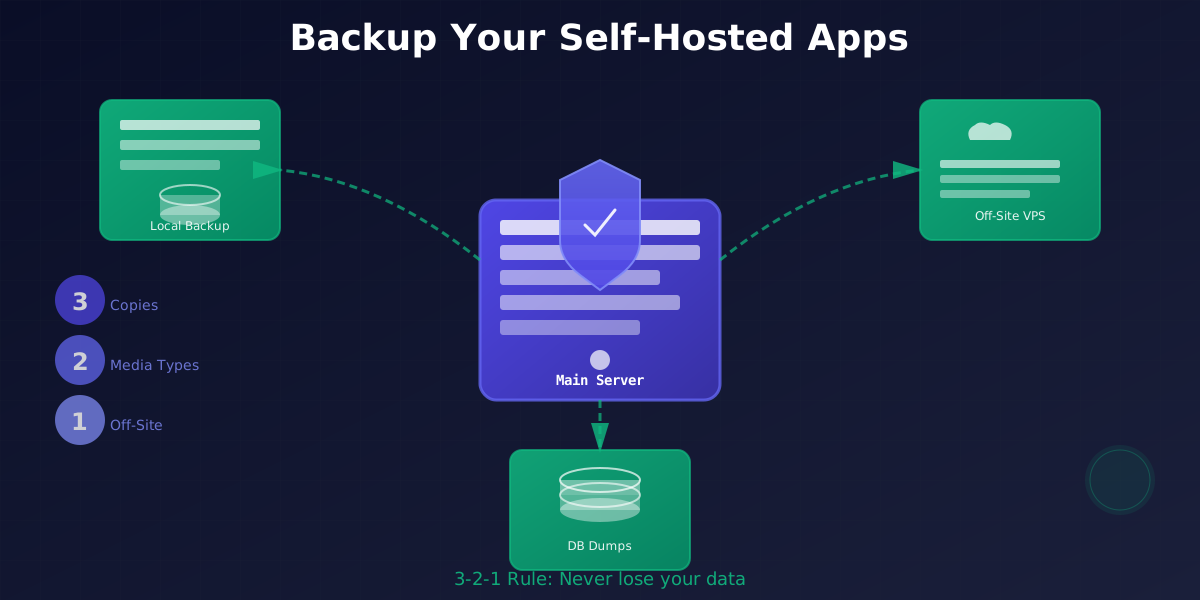
A real backup strategy follows the 3-2-1 rule:
- 3 copies of your data (original + 2 backups)
- 2 different storage media types (e.g., local disk + cloud/remote VPS)
- 1 copy off-site (geographically separate from your main server)
Now let’s build that.
What You Need to Backup
Not everything on your server needs backing up. Focus on what’s irreplaceable:
1. Docker Volumes
These contain your application data — uploaded files, configuration, user content. This is your crown jewel.
2. Databases
PostgreSQL, MySQL, MongoDB — whatever your apps use. Database files can’t just be copied while running; you need proper dumps.
3. Configuration Files
Docker Compose files, environment variables, reverse proxy configs. These let you rebuild your stack quickly.
4. Application Secrets
API keys, SSL certificates, authentication tokens. Store these securely.
What You DON’T Need to Backup
- Docker images (pull them fresh)
- Operating system files (reinstall)
- Temporary/cache directories
- Log files (unless you need them for compliance)
The Local Backup Strategy
Let’s start with local backups — your first line of defense against accidents and mistakes.
Step 1: Install Backup Tools
I recommend Restic for local backups. It’s fast, encrypted by default, and works with Docker volumes beautifully.
# Install Restic
sudo apt update
sudo apt install restic -y

# Verify installation
restic version
Step 2: Initialize a Backup Repository
Create a backup repository on a separate disk or partition (NOT the same disk your Docker volumes are on):
# Create backup directory
sudo mkdir -p /mnt/backups/restic

# Initialize repository
restic init --repo /mnt/backups/restic

# You'll be prompted to create a password — save this somewhere safe!
Step 3: Backup Docker Volumes
Docker volumes are typically stored in /var/lib/docker/volumes/. Let’s back them up:
# Stop containers (optional but recommended for consistency)
docker compose -f /path/to/your/docker-compose.yml stop

# Backup volumes
restic -r /mnt/backups/restic backup \
  /var/lib/docker/volumes/ \
  --tag docker-volumes \
  --tag $(date +%Y-%m-%d)

# Restart containers
docker compose -f /path/to/your/docker-compose.yml start
Pro tip: If stopping containers isn’t an option (for high-availability apps), use Docker’s native backup:
docker run --rm \
  -v your-volume-name:/data \
  -v /mnt/backups:/backup \
  alpine tar czf /backup/your-volume-backup.tar.gz -C /data .
Step 4: Backup Databases
Database files can’t be copied while running — you need logical dumps.
PostgreSQL:
docker exec your-postgres-container pg_dumpall -U postgres > /mnt/backups/postgres-$(date +%Y%m%d).sqlMySQL/MariaDB:
docker exec your-mysql-container mysqldump -u root -p --all-databases > /mnt/backups/mysql-$(date +%Y%m%d).sqlMongoDB:
docker exec your-mongo-container mongodump --archive=/backup/mongo-$(date +%Y%m%d).archiveThen backup these dumps with Restic:
restic -r /mnt/backups/restic backup /mnt/backups/*.sql --tag database-dumpsStep 5: Backup Configuration
Your Docker Compose files and configs are tiny but critical:
restic -r /mnt/backups/restic backup \
  /path/to/docker-compose.yml \
  /path/to/.env \
  /etc/nginx/ \
  --tag configs
Step 6: Automate with Cron
Manual backups don’t happen. Automate them:
# Edit crontab
sudo crontab -e

# Add daily backup at 2 AM
0 2 * * * /usr/local/bin/backup-script.sh >> /var/log/backups.log 2>&1
Create /usr/local/bin/backup-script.sh:
#!/bin/bash
set -e

REPO="/mnt/backups/restic"
BACKUP_TAG="$(date +%Y-%m-%d)"

# Backup databases
docker exec postgres-container pg_dumpall -U postgres > /tmp/postgres-dump.sql
docker exec mysql-container mysqldump -u root -pYOURPASSWORD --all-databases > /tmp/mysql-dump.sql

# Backup with Restic
restic -r $REPO backup \
  /var/lib/docker/volumes/ \
  /tmp/*.sql \
  /path/to/configs/ \
  --tag $BACKUP_TAG

# Clean up temporary dumps
rm /tmp/*.sql

# Prune old backups (keep last 7 days, 4 weeks, 12 months)
restic -r $REPO forget \
  --keep-daily 7 \
  --keep-weekly 4 \
  --keep-monthly 12 \
  --prune

echo "Backup completed: $BACKUP_TAG"
Make it executable:
sudo chmod +x /usr/local/bin/backup-script.shThe Off-Site Backup Strategy
Local backups protect against accidents. Off-site backups protect against disasters.
If your server’s datacenter burns down, floods, or gets hit by ransomware, you need backups somewhere else.
Option 1: Second VPS for Backups
The most reliable approach is a second VPS in a different datacenter/provider.
Why this works:
- Geographically separate (different datacenter = different failure domain)
- You control it (no third-party cloud dependencies)
- Cheap (backup VPSs don’t need much CPU/RAM, just storage)
Recommended providers for backup VPS:
- Hetzner Storage Box (~€3/month for 100GB) — specifically designed for backups
- DigitalOcean Spaces (S3-compatible, ~$5/month for 250GB)
- Hostinger VPS (cheap, different provider = different infrastructure)
- Vultr Object Storage (S3-compatible, pay for what you use)
Let’s set up Restic with a remote VPS via SFTP:
# Initialize remote repository (one-time setup)
restic -r sftp:[email protected]:/backups/restic init

# Backup to remote
restic -r sftp:[email protected]:/backups/restic backup \
  /var/lib/docker/volumes/ \
  /path/to/configs/ \
  --tag $(date +%Y-%m-%d)
Pro tip: Set up SSH key authentication so backups run unattended:
# Generate SSH key
ssh-keygen -t ed25519 -f ~/.ssh/backup-vps -N ""

# Copy to backup VPS
ssh-copy-id -i ~/.ssh/backup-vps [email protected]

# Use in Restic
restic -r sftp:[email protected]:/backups/restic backup /data/
Option 2: S3-Compatible Storage
If you prefer managed storage, Restic supports S3-compatible backends:
# Set credentials
export AWS_ACCESS_KEY_ID="your-key"
export AWS_SECRET_ACCESS_KEY="your-secret"

# Initialize S3 repository
restic -r s3:s3.amazonaws.com/your-bucket-name init

# Backup to S3
restic -r s3:s3.amazonaws.com/your-bucket-name backup /var/lib/docker/volumes/
Works with:
- AWS S3
- Backblaze B2 (cheaper than S3)
- Wasabi
- Any S3-compatible provider
Option 3: Encrypted Cloud Backup
For extra paranoia, encrypt backups before they leave your server:
# Restic already encrypts, but you can double-encrypt with GPG
tar czf - /var/lib/docker/volumes/ | \
  gpg --encrypt --recipient [email protected] | \
  rclone copy - remote:backups/encrypted-$(date +%Y%m%d).tar.gz.gpg
Testing Your Backups (The Part Everyone Skips)
A backup you haven’t tested is a backup that doesn’t exist.
I can’t stress this enough. I’ve seen people with years of “backups” discover they’re corrupted when disaster strikes.
Test your backups quarterly. Here’s how:
Test 1: List Snapshots
Verify Restic can read your repository:
restic -r /mnt/backups/restic snapshotsYou should see a list of all backup snapshots. If this fails, your backups are broken.
Test 2: Restore a Single File
Pick a random file and restore it:
# List files in latest snapshot
restic -r /mnt/backups/restic ls latest

# Restore specific file
restic -r /mnt/backups/restic restore latest \
  --target /tmp/restore-test \
  --include /var/lib/docker/volumes/nextcloud/_data/config.php

# Verify it matches
diff /tmp/restore-test/var/lib/docker/volumes/nextcloud/_data/config.php \
     /var/lib/docker/volumes/nextcloud/_data/config.php
Test 3: Full Disaster Recovery Drill
Once a year, do a full drill:
- Spin up a fresh VPS
- Restore your entire backup
- Start your Docker stack
- Verify apps work
This reveals gaps in your backup process (Did you backup the .env file? The SSL certs? The database passwords?).
Backup Monitoring & Alerts
Set up monitoring so you know if backups fail:
Option 1: Healthchecks.io
Free service that pings you if backups don’t run:
# Add to your backup script
HEALTHCHECK_URL="https://hc-ping.com/your-unique-id"

# At the end of backup script
if [ $? -eq 0 ]; then
  curl -fsS --retry 3 $HEALTHCHECK_URL > /dev/null
fi
Option 2: Uptime Kuma
Self-hosted monitoring (because of course we’re self-hosting the monitoring too):
# docker-compose.yml
uptime-kuma:
  image: louislam/uptime-kuma:1
  volumes:
    - uptime-kuma:/app/data
  ports:
    - "3001:3001"
  restart: unless-stopped
Configure it to check your backup logs and alert you via Discord/Slack/Email if backups fail.
Advanced: Incremental & Deduplicated Backups
Restic automatically deduplicates data. If you backup the same file twice, it only stores it once.
This means you can backup frequently without wasting space:
# Backup every 6 hours
0 */6 * * * /usr/local/bin/backup-script.sh
Restic’s retention policy keeps daily backups for a week, weekly for a month, monthly for a year — all while using minimal disk space.
Common Mistakes to Avoid
- Backing up to the same disk — If the disk fails, you lose everything.
- Never testing restores — Your backups might be corrupt and you won’t know.
- Not encrypting off-site backups — If someone gains access to your backup VPS, they can read your data.
- Forgetting database dumps — Copying
/var/lib/docker/volumes/postgres/while the DB is running = corrupted backup. - No monitoring — Backups silently fail and you don’t notice for months.
- Storing backup passwords insecurely — If you lose the password, the backups are useless.
Recovery Time Objective (RTO) & Recovery Point Objective (RPO)
Fancy terms that matter:
- RPO = How much data you can afford to lose. If you backup daily, your RPO is 24 hours.
- RTO = How long it takes to restore. If restoring takes 4 hours, your RTO is 4 hours.
For personal self-hosting, an RPO of 24 hours and RTO of a few hours is usually fine. For critical apps (e.g., you run a business on your self-hosted stack), you might need:
- More frequent backups (every hour = 1-hour RPO)
- Faster storage for restores (SSD instead of HDD)
- Hot standby servers (near-zero RTO)
The Complete Backup Checklist
Here’s your action plan:
- Install Restic
- Create local backup repository (on separate disk)
- Set up database dump scripts
- Configure automated backups (cron)
- Set up off-site backups (second VPS or S3)
- Test restore of a single file
- Document your restore procedure
- Set up backup monitoring (Healthchecks.io or Uptime Kuma)
- Schedule quarterly restore tests
- Store backup passwords in a password manager
Final Thoughts
Backups are boring until you need them. Then they’re everything.
The best time to set up backups was when you started self-hosting. The second-best time is right now.
Spend an afternoon getting this right, and you’ll sleep better knowing your data is safe. Future you will thank you.
Need a VPS for off-site backups? Check out our guide to the best VPS providers for self-hosting. For backup-specific storage, Hetzner’s Storage Box is unbeatable value.
Next steps: Set up monitoring with Uptime Kuma to track your backup health, and read our VPS security hardening guide to protect your backup server.
Stay in the loop 📬
Get self-hosting tutorials, tool reviews, and infrastructure tips delivered to your inbox. No spam, unsubscribe anytime.
Join 0 self-hosters. Free forever.