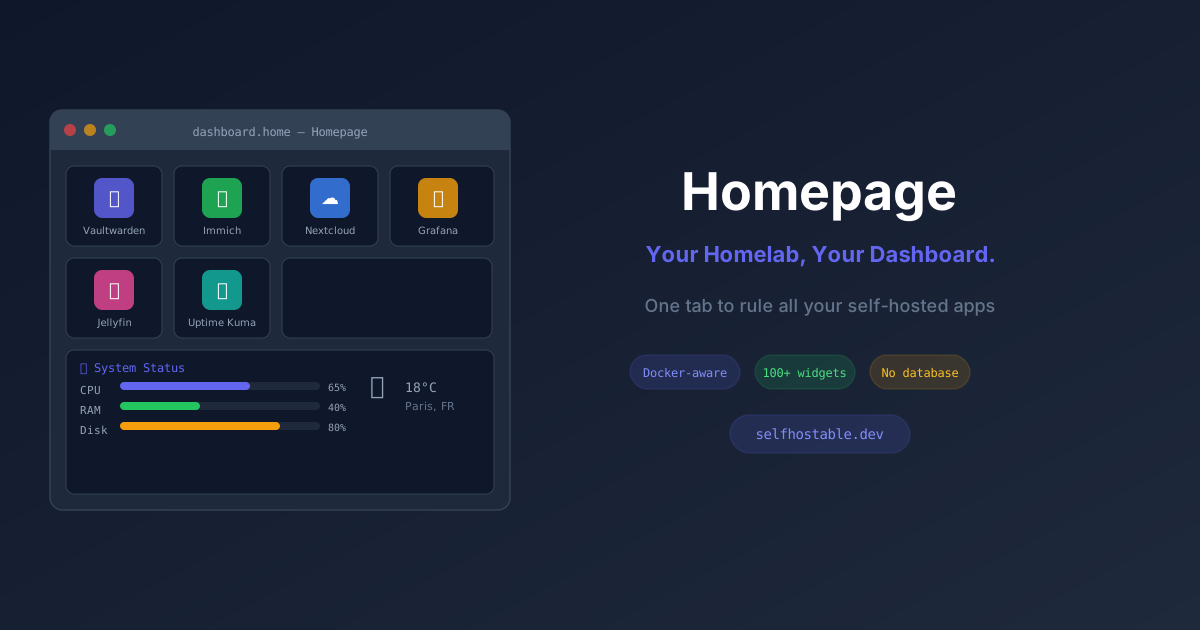
Homepage Dashboard: The Missing Front Page for Your Homelab
Set up Homepage dashboard to organize all your self-hosted services in one place. Docker-aware, 100+ widgets, no database required. Complete setup guide.
There’s a specific moment every homelab grows into when you realize you can’t remember the port numbers anymore. Is Grafana on 3000 or 3001? Is Uptime Kuma 3001 or 4000? Is Paperless on… actually what did I put Paperless on?
A dashboard fixes this. One tab in your browser, all your services, with actual live data from each one.
I’ve tried three different homelab dashboards over the years — Homer, Organizr, and Homarr — before settling on Homepage. This is the setup guide I wish existed when I started.
Why Homepage Over the Others?
Quick comparison since you’ll find all four mentioned in homelab forums:
Homer — Dead simple. Just links with icons. No live data. Fine if that’s all you need, but it’s basically a glorified bookmarks page.
Organizr — Tries to do too much. It has tabs, iframe embedding, user management. It’s like they wanted to replace your browser. I found it overwhelming.
Homarr — Beautiful UI, drag-and-drop, very polished. I used it for six months. The problem: it stores config in a SQLite database, which makes version-controlling your config painful. And the config sometimes changed under my feet after updates.
Homepage — Config lives in YAML files. That’s it. No database, no UI config editor (well, there is one now, but YAML is the source of truth). You version control your YAML, you can reproduce your dashboard from scratch in 5 minutes. Docker-aware, showing container status live. 100+ service integrations showing real data.
The YAML-first approach sounds like extra work. It’s actually less work, especially after you’ve accidentally nuked a database once.
What You’ll Need
- Docker and Docker Compose
- A server (could be your NAS, a VPS, a Raspberry Pi — Homepage uses almost no resources)
- Optional but nice: a domain with SSL so you can access it from anywhere
Homepage itself uses about 50MB RAM. It’s tiny.
Step 1: File Structure
Homepage expects a specific config directory structure:
mkdir -p ~/homepage/config
cd ~/homepage
You’ll create these files:
config/settings.yaml— Global settings (title, theme, layout)config/services.yaml— Your apps/linksconfig/widgets.yaml— Dashboard-level info widgets (time, weather, etc.)config/bookmarks.yaml— Quick links (optional)config/docker.yaml— Docker socket integration (optional but great)config/kubernetes.yaml— Kubernetes integration (ignore if not using K8s)
Step 2: Docker Compose
version: "3.3"

services:
  homepage:
    image: ghcr.io/gethomepage/homepage:latest
    container_name: homepage
    restart: unless-stopped
    ports:
      - "3333:3000"
    volumes:
      - ./config:/app/config
      - /var/run/docker.sock:/var/run/docker.sock:ro
      - /etc/localtime:/etc/localtime:ro
    environment:
      - HOMEPAGE_VAR_TITLE=My Homelab
    networks:
      - proxy

networks:
  proxy:
    external: true
A few intentional choices here:
Port 3333 — I’ve seen 3000 cause conflicts with Gitea, Grafana, or other services that default to 3000. Pick something you haven’t used.
Docker socket (read-only) — Mounting /var/run/docker.sock:ro lets Homepage see all your running containers and their status. Read-only is enough and is safer than read-write.
unless-stopped restart policy — Better than always for dashboards. If you manually stop it for maintenance, it stays stopped until you restart it on purpose.
Start it up:
docker compose up -dHit http://your-server-ip:3333. You’ll see a blank Homepage with a clock. Time to fill it in.
Step 3: Global Settings
Edit config/settings.yaml:
title: "Homelab"
description: "My Self-Hosted Stack"
startUrl: https://dashboard.yourdomain.com
theme: dark  # or "light"
color: slate  # slate, gray, zinc, neutral, stone, red, orange, amber, yellow, lime, green, emerald, teal, cyan, sky, blue, indigo, violet, purple, fuchsia, pink, rose

# Show background image
background:
  image: https://images.unsplash.com/photo-1558618666-fcd25c85cd64?w=2560

# Header layout style
headerStyle: clean  # or "underlined", "boxed", "boxedWidgets"

# Card blur effect
cardBlur: sm

# Language
language: en

# Group layout — defines column structure
layout:
  Infrastructure:
    style: row
    columns: 4
  Media:
    style: row
    columns: 3
  Productivity:
    style: row
    columns: 3
  Monitoring:
    style: row
    columns: 4
The layout section controls how service groups are arranged. Each group you define in services.yaml gets matched by name. If you don’t define layout for a group, it defaults to a single column. Defining it explicitly gives you control over the column count.
Step 4: Services
This is the main event. Edit config/services.yaml:
- Infrastructure:
  - Nginx Proxy Manager:
      icon: nginx-proxy-manager.svg
      href: https://npm.yourdomain.com
      description: Reverse Proxy
      widget:
        type: npm
        url: http://nginx-proxy-manager:81
        username: [email protected]
        password: {{HOMEPAGE_VAR_NPM_PASSWORD}}

  - Portainer:
      icon: portainer.svg
      href: https://portainer.yourdomain.com
      description: Docker Management
      widget:
        type: portainer
        url: http://portainer:9000
        env: 1
        key: {{HOMEPAGE_VAR_PORTAINER_KEY}}

  - Coolify:
      icon: coolify.svg
      href: https://coolify.yourdomain.com
      description: App Deployment
      widget:
        type: coolify
        url: https://coolify.yourdomain.com
        key: {{HOMEPAGE_VAR_COOLIFY_KEY}}

- Media:
  - Jellyfin:
      icon: jellyfin.svg
      href: https://jellyfin.yourdomain.com
      description: Media Server
      widget:
        type: jellyfin
        url: http://jellyfin:8096
        key: {{HOMEPAGE_VAR_JELLYFIN_KEY}}
        enableBlocks: true
        enableNowPlaying: true

  - Immich:
      icon: immich.svg
      href: https://immich.yourdomain.com
      description: Photo Library
      widget:
        type: immich
        url: http://immich-server:2283
        key: {{HOMEPAGE_VAR_IMMICH_KEY}}

- Productivity:
  - Nextcloud:
      icon: nextcloud.svg
      href: https://nextcloud.yourdomain.com
      description: Files & Calendar
      widget:
        type: nextcloud
        url: https://nextcloud.yourdomain.com
        username: admin
        password: {{HOMEPAGE_VAR_NC_PASSWORD}}

  - Vaultwarden:
      icon: vaultwarden.svg
      href: https://vault.yourdomain.com
      description: Password Manager

  - Paperless-ngx:
      icon: paperless-ngx.svg
      href: https://paperless.yourdomain.com
      description: Document Management
      widget:
        type: paperlessngx
        url: http://paperless:8000
        key: {{HOMEPAGE_VAR_PAPERLESS_KEY}}

- Monitoring:
  - Uptime Kuma:
      icon: uptime-kuma.svg
      href: https://status.yourdomain.com
      description: Uptime Monitoring
      widget:
        type: uptimekuma
        url: http://uptime-kuma:3001
        slug: homelab

  - Grafana:
      icon: grafana.svg
      href: https://grafana.yourdomain.com
      description: Metrics & Dashboards
      widget:
        type: grafana
        url: http://grafana:3000
        username: admin
        password: {{HOMEPAGE_VAR_GRAFANA_PASSWORD}}

  - Authentik:
      icon: authentik.svg
      href: https://auth.yourdomain.com
      description: Identity Provider
      widget:
        type: authentik
        url: http://authentik-server:9000
        key: {{HOMEPAGE_VAR_AUTHENTIK_KEY}}
The {{HOMEPAGE_VAR_*}} pattern — This is Homepage’s environment variable substitution. Never put passwords directly in YAML files that you’ll git-commit. Instead, define them in your docker-compose.yml environment section or a .env file:
HOMEPAGE_VAR_NPM_PASSWORD=yourNPMpassword
HOMEPAGE_VAR_PORTAINER_KEY=your-portainer-api-key
HOMEPAGE_VAR_JELLYFIN_KEY=your-jellyfin-api-key
HOMEPAGE_VAR_IMMICH_KEY=your-immich-api-key
HOMEPAGE_VAR_NC_PASSWORD=your-nextcloud-password
HOMEPAGE_VAR_PAPERLESS_KEY=your-paperless-token
HOMEPAGE_VAR_GRAFANA_PASSWORD=your-grafana-password
HOMEPAGE_VAR_AUTHENTIK_KEY=your-authentik-token
HOMEPAGE_VAR_COOLIFY_KEY=your-coolify-token
Homepage reads these at startup and substitutes them into the YAML. Your config file can be safely committed to a private git repo with no credentials exposed.
Step 5: Top-Level Widgets
The widgets.yaml file controls the info row that appears at the top of the dashboard — things like time, date, weather, and system stats.
Edit config/widgets.yaml:
- logo:
    icon: https://selfhostable.dev/favicon.svg

- greeting:
    text_size: xl
    text: "Good morning, homelab."

- datetime:
    text_size: xl
    format:
      timeStyle: short
      dateStyle: full
      hourCycle: h23

- openmeteo:
    label: Paris
    latitude: 48.8566
    longitude: 2.3522
    units: metric
    cache: 5

- resources:
    label: Server
    cpu: true
    memory: true
    disk: /
    cacheInterval: 5000
The resources widget shows live CPU, RAM, and disk usage. Super handy for seeing at a glance if something’s eating resources.
openmeteo uses the Open-Meteo free weather API — no API key needed. Just plug in your coordinates. I found this more reliable than the OpenWeatherMap integration, which kept having auth issues on free tiers.
Step 6: Docker Integration (The Good Part)
This is where Homepage gets genuinely interesting. With the Docker socket mounted, Homepage can automatically discover all your running containers.
Edit config/docker.yaml:
my-server:
  socket: /var/run/docker.sock
Then in your other containers’ Docker labels, you can add Homepage metadata:
# In your Jellyfin docker-compose.yml
services:
  jellyfin:
    image: jellyfin/jellyfin
    labels:
      - homepage.group=Media
      - homepage.name=Jellyfin
      - homepage.icon=jellyfin.svg
      - homepage.href=https://jellyfin.yourdomain.com
      - homepage.description=Media Server
      - homepage.widget.type=jellyfin
      - homepage.widget.url=http://jellyfin:8096
      - homepage.widget.key=your-api-key
With these labels, you don’t even need to manually define the service in services.yaml. Homepage picks it up automatically when the container starts. When you stop the container, it disappears from the dashboard.
I went back and added these labels to all my containers over a weekend. Now my services.yaml is mostly empty because everything auto-discovers. Adding a new service is as simple as adding the labels to its compose file.
Getting Service API Keys
The widgets need API keys or credentials to fetch live data. Here’s the quick reference:
Jellyfin: Admin Dashboard → API Keys → Add API Key
Portainer: Settings → Users → [your user] → Access Tokens
Grafana: Administration → Service Accounts → Add service account (with Viewer role), then create a token
Uptime Kuma: The slug is from your status page URL (/status/[slug]). No API key needed for public status pages.
Paperless-ngx: Settings → API Auth Token (at the bottom of the profile page)
Immich: User Settings → API Keys
Authentik: Admin Interface → System → Tokens and App Passwords
Coolify: Profile → API Tokens
Most apps call these “API keys” or “tokens.” They’re usually in settings under security or admin sections. Takes 5 minutes per service.
Reverse Proxy + SSL
In Nginx Proxy Manager, add a proxy host:
- Domain:
dashboard.yourdomain.com(or whatever you prefer) - Forward Port:
3333 - SSL: Let’s Encrypt
If you used Authentik for SSO, add the forward auth middleware to protect your dashboard. No reason to expose your homelab overview to the internet unprotected.
Bookmarks (Optional but Useful)
config/bookmarks.yaml lets you add a quick-links section to the dashboard. I use this for frequently-visited external sites:
- Dev Resources:
  - GitHub:
    - abbr: GH
      href: https://github.com

  - Docker Hub:
    - abbr: DH
      href: https://hub.docker.com

- Documentation:
  - Selfhostable.dev:
    - abbr: SH
      href: https://selfhostable.dev

  - Awesome Self-Hosted:
    - abbr: AS
      href: https://awesome-selfhosted.net
Customization Tips
Custom icons: Homepage has a huge built-in icon library (it uses Dashboard Icons which has 400+ app icons). If an app isn’t there, you can point to any image URL.
Custom CSS: You can add a config/custom.css file to tweak styles. I darkened the card backgrounds slightly:
:root {
  --color-card: rgba(15, 23, 42, 0.8);
}
Multiple instances: I have a second Homepage instance with a different config that’s a family-friendly view — Jellyfin, Nextcloud, Immich — without all the infrastructure stuff. Same setup, different YAML files.
Background images: Unsplash works well for backgrounds. Search for “server room”, “galaxy”, or whatever mood you’re going for. Width parameter ?w=2560 keeps it from downloading a 20MB file.
What I Wish I’d Known
Start with just the links, add widgets later. The first time I set up a dashboard I tried to wire up every widget at once. Three services had auth failures, I couldn’t tell which one was which, and I spent an hour debugging. Add one service, verify the widget works, then add the next.
The widget docs are excellent. The Homepage documentation has a page for each widget with exact config examples. It’s one of the better-documented self-hosted projects I’ve used.
Version control your config folder. This is the whole point of the YAML-first design. Create a private git repo, push ~/homepage/config/. If your server dies, you restore Docker, clone the repo, start Homepage, done.
Hot-reload is real. Homepage watches your YAML files for changes. Edit a file, save it, and the dashboard updates in a few seconds without a restart. Makes tweaking much less painful.
FAQ
Is Homepage the same as the homepage.dev domain I see mentioned?
No — there’s a homepage.dev which is a different thing (a GitHub profile tool). The homelab dashboard is gethomepage.dev. The naming is a bit unfortunate.
Does Homepage expose any credentials if I access it from outside my network? Homepage only serves HTML/CSS/JS to the browser. API calls to your services happen server-side, inside Docker’s network. Your API keys are never sent to the browser. That said, put it behind auth (Authentik, Authelia, or at minimum HTTP basic auth) if it’s internet-exposed.
Can I run multiple dashboards with different configs? Yes, just run multiple Homepage containers pointing to different config directories.
Does it work on mobile? The responsive layout is decent on mobile. Not as polished as some native apps, but functional for checking service status on your phone.
Homepage vs Dashdot? Dashdot is a beautiful server stats widget, not a full dashboard. They’re not really competing — I actually run both and embed Dashdot into my Grafana. Different purposes.
A good dashboard is one of those quality-of-life improvements that feels unnecessary until you have it, and then you can’t imagine living without it. Especially when you’re 15 services deep into your homelab and just want to know whether Jellyfin is up before you sit down to watch something.
Set it up once. Configure your services. Commit the YAML to git. It’ll be there when you come back.
Stay in the loop 📬
Get self-hosting tutorials, tool reviews, and infrastructure tips delivered to your inbox. No spam, unsubscribe anytime.
Join 0 self-hosters. Free forever.