Systemd Timers for Reliable Homelab Scheduled Jobs
Replace a quiet cron entry with a systemd timer. Schedule homelab jobs, catch missed runs, inspect failures, and test a safe example before touching backups.
A scheduled job that fails quietly is not automation. It is a surprise with a calendar attached. Systemd timers give your homelab jobs a schedule you can inspect and a service whose exit status and logs you can actually find.
I prefer them to cron for Linux server maintenance when systemd already manages the machine. Not because cron is broken, but because a timer and its service put scheduling and execution into explicit, separate files.
This Friday tutorial starts with a harmless job that prints a message. No database dumps, no pruning, no production scripts. Get the mechanics right before attaching a command that can delete something expensive.
What a systemd timer does
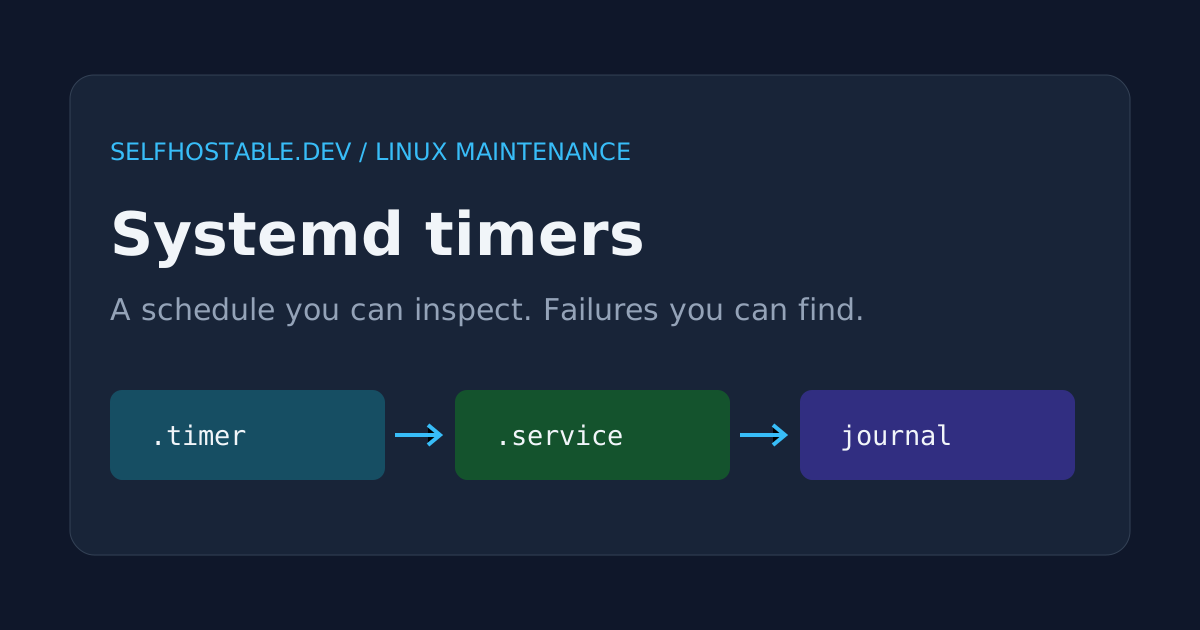
The timer decides when to activate a service. The service decides what command runs, under which account, and with which restrictions. Matching file names let homelab-maintenance.timer activate homelab-maintenance.service without an explicit Unit= setting.
For a one-off command, use Type=oneshot. Systemd waits for the command to finish and records its result. A timer does not launch another instance of that same service while it is already active.
That last detail is useful for slow jobs. It is not a queue: elapsed events do not become a backlog of independent executions. If you need every scheduled event processed, use a proper job queue instead.
This guide targets a Linux host running systemd as its service manager. A minimal container or a non-systemd distribution needs a different scheduler. These are system units, so installing and running them requires administrative privileges.
Create a harmless service first
Save this as homelab-maintenance.service in a working directory:
[Unit]
Description=Harmless homelab scheduled-job demonstration

[Service]
Type=oneshot
ExecStart=/usr/bin/printf 'Homelab maintenance demo completed\n'
DynamicUser=yes
NoNewPrivileges=yes
PrivateTmp=yes
ProtectSystem=strict
ProtectHome=yes
TimeoutStartSec=60
StandardOutput=journal
StandardError=journal
Check that /usr/bin/printf exists on your host before using the example. ExecStart is not a shell command line: pipes, redirects, and shell variables do not work as they would in your terminal. Put real multi-step work in a script with a shebang rather than squeezing shell syntax into the unit.
I deliberately use a dynamic, unprivileged account for this demonstration. It needs no access to your home directory, application data, or Docker daemon. ProtectSystem=strict makes the filesystem read-only inside the service’s view, with exceptions managed by systemd.
These settings are a starting point, not a hardening certificate. A real backup needs access to its source, a writable destination, and credentials. Copying this sandbox unchanged and then wondering why your backup cannot write files is an excellent way to spend your evening.
Add a calendar timer
Save this alongside the service as homelab-maintenance.timer:
[Unit]
Description=Run the homelab demonstration each morning

[Timer]
OnCalendar=*-*-* 09:00:00
Persistent=true
RandomizedDelaySec=5m
AccuracySec=1s

[Install]
WantedBy=timers.target
OnCalendar uses the host’s local timezone unless you specify one. This example requests a daily morning run, then adds a random delay of up to five minutes. The delay avoids making every maintenance job compete at precisely the same second.
Persistent=true matters when the machine is off at the scheduled time. On activation, systemd can trigger the service if at least one calendar event was missed while the timer was inactive. It does not replay every missed day, and the randomized delay still applies.
My rule: enable catch-up only when a late execution is useful. A backup usually benefits from catching up. A notification announcing yesterday’s appointment may not. Persistence is a scheduling choice, not a retry policy for commands that failed.
AccuracySec controls the window within which systemd may coalesce timer events. A small value makes this example easier to reason about; it does not promise real-time execution under load. For ordinary maintenance, the default accuracy is often perfectly fine.
Validate before installing
From the directory containing both files, run:
systemd-analyze calendar '*-*-* 09:00:00'
systemd-analyze verify ./homelab-maintenance.service ./homelab-maintenance.timer
The calendar command shows how systemd interprets the expression and its next occurrence. The verification command catches unit-file problems, including an executable path that does not exist. Read any warnings instead of assuming silence from your editor means valid configuration.
Install only the files you just reviewed:
sudo install -m 0644 homelab-maintenance.service /etc/systemd/system/
sudo install -m 0644 homelab-maintenance.timer /etc/systemd/system/
sudo systemctl daemon-reload
sudo systemctl start homelab-maintenance.service
sudo journalctl -u homelab-maintenance.service -n 20 --no-pager
The manual start exercises the service immediately without waiting for its schedule. For this demonstration, look for Homelab maintenance demo completed in the journal. A successful validation is not a substitute for running the command.
Only after that test, enable the timer:
sudo systemctl enable --now homelab-maintenance.timer
systemctl list-timers --all homelab-maintenance.timer
Check the next activation, not just whether the unit is enabled. Depending on prior timer state, enabling a persistent timer may cause a catch-up run. That is harmless here, but deserves thought when the service sends messages or modifies data.
Find failures without guessing
Use the service name to inspect execution, and the timer name to inspect scheduling:
systemctl status homelab-maintenance.timer --no-pager
systemctl show homelab-maintenance.service -p Result -p ExecMainCode -p ExecMainStatus
sudo journalctl -u homelab-maintenance.service --since today --no-pager
A completed oneshot service normally becomes inactive. That is not the same as failure. Inspect its recorded result and exit status rather than expecting a batch job to remain green and running forever.
For a real script, return a nonzero exit code when the work fails. A script that prints an error and then exits successfully has lied to its supervisor. If you use Bash pipelines, decide deliberately whether set -o pipefail is needed so an earlier failure is not hidden by a later successful command.
The journal is local evidence, not a notification system. Configure failure alerts or an independent missed-run monitor for critical jobs. Our Uptime Kuma guide is a useful starting point, but a monitor on the same dead server cannot warn you about that server disappearing.
Turn the demo into real maintenance carefully
Before replacing ExecStart, choose the least-privileged account that can do the work. A stable User= is often easier for an existing script with owned files; do not combine it casually with this demo’s dynamic-user setup. Define an explicit WorkingDirectory if relative paths matter.
Keep credentials out of the unit text and command arguments. Environment files are not automatically a secure secret store. For sensitive tasks, consider systemd’s credential facilities and review file permissions, logging, and what the application itself exposes.
A backup service needs write access to its destination. Use narrowly scoped filesystem permissions and sandbox exceptions instead of disabling every protection until the command works. Membership in the Docker group effectively grants powerful host access; it is not an ordinary low-privilege permission.
For backup design, see our VPS backup strategy. For broader host protections, start with the VPS hardening guide. This tutorial supplies the scheduling wrapper, not a tested backup procedure for your data.
Remote administration is a separate concern
A timer does not secure your network connection. Use SSH with verified host keys or a private access VPN to administer your server; you do not need a commercial VPN subscription to follow this guide.
If you want a commercial VPN for your administrator laptop on untrusted networks, this optional affiliate link is separate from the scheduler setup. It does not replace HTTPS, SSH authentication, or server access controls.
🚀NordVPN
An optional VPN for your administrator laptop on untrusted networks, not a requirement for systemd timers.
Affiliate link — we may earn a commission at no extra cost to you.
Clean up, then schedule one useful job
Remove the demonstration when you have finished exploring it:
sudo systemctl disable --now homelab-maintenance.timer
sudo rm /etc/systemd/system/homelab-maintenance.timer /etc/systemd/system/homelab-maintenance.service
sudo systemctl daemon-reload
The installed filenames are specific to this demo. Do not run the removal commands against units you have already repurposed for production work.
Next, pick one existing maintenance script. Test it manually under its intended account, wrap it in a service, inspect its logs, and only then enable its timer. I would rather have one boring job with a visible failure than twenty clever cron entries nobody checks.
Keep the official systemd.timer reference, service reference, and execution environment reference nearby. Your installed systemd version is the authority on which settings your host supports.
Stay in the loop 📬
Get self-hosting tutorials, tool reviews, and infrastructure tips delivered to your inbox. No spam, unsubscribe anytime.
Join 0 self-hosters. Free forever.