How to Set Up Traefik Reverse Proxy with Docker — Complete Guide
Learn how to configure Traefik reverse proxy for Docker containers with automatic SSL certificates, dashboard access, and production-ready security settings.
If you’re running multiple Docker containers on a single VPS, you’ve probably hit the port management headache. Service A runs on port 3000, service B on 8080, service C on 5000… and now you’re typing :3000 into every URL like it’s 2010.
Enter Traefik — a modern reverse proxy that automatically discovers your Docker containers, handles SSL certificates via Let’s Encrypt, and gives you clean URLs like app.yourdomain.com instead of yourdomain.com:3000.
This guide walks through setting up Traefik from scratch with Docker Compose, automatic HTTPS, and production-grade security. By the end, you’ll have a reverse proxy that makes managing multiple self-hosted apps effortless.
What Is a Reverse Proxy and Why Do You Need One?
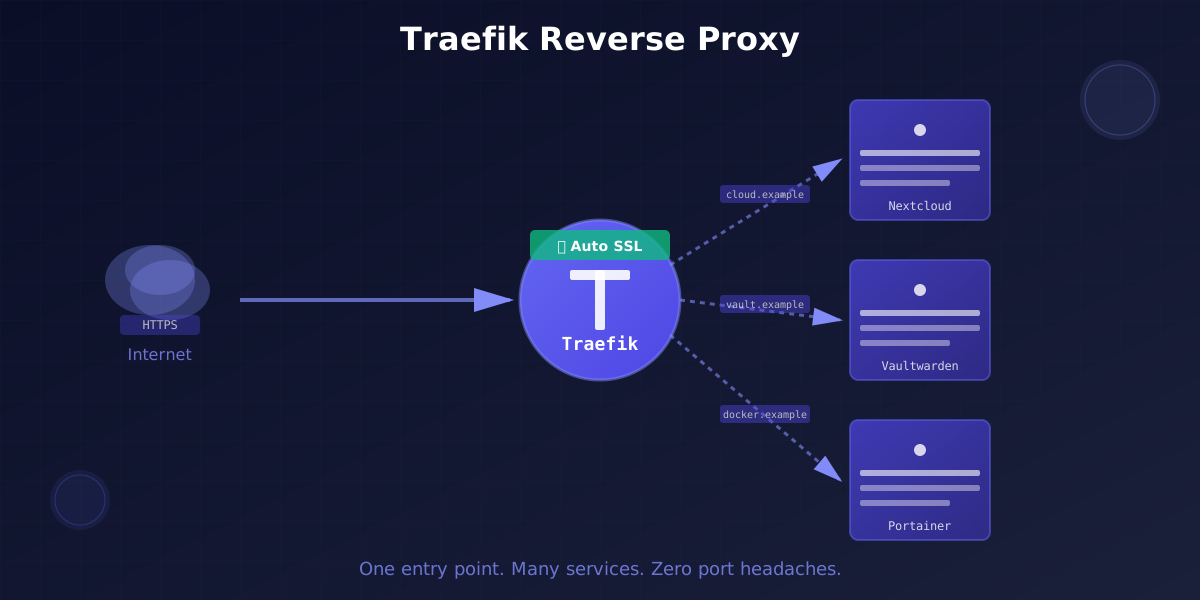
A reverse proxy sits between the internet and your Docker containers. Instead of exposing each container directly on different ports, the reverse proxy:
- Routes traffic based on domain names or paths
- Handles SSL/TLS certificates automatically (no more manual cert renewals)
- Provides a single entry point for all services (only ports 80 and 443 exposed)
- Adds security layers like rate limiting and middleware
- Enables load balancing if you scale services horizontally
Without a reverse proxy, accessing three self-hosted apps looks like:
http://server-ip:3000(Nextcloud)http://server-ip:8080(Vaultwarden)http://server-ip:9000(Portainer)
With Traefik and proper DNS records:
https://nextcloud.yourdomain.comhttps://vault.yourdomain.comhttps://portainer.yourdomain.com
Clean, secure, and you can actually remember which app is which.
Why Traefik Instead of Nginx or Caddy?
Both Nginx and Caddy are excellent reverse proxies, but Traefik shines for Docker-first workflows:
Traefik advantages:
- Native Docker integration — discovers containers automatically via labels
- Built-in Let’s Encrypt support with automatic renewal
- Dynamic configuration (no manual config reloads)
- Beautiful web dashboard for monitoring
- HTTP/2 and HTTP/3 support out of the box
When to use alternatives:
- Nginx — You need maximum performance or have complex Lua scripting needs
- Caddy — You want simpler config files and don’t need advanced routing
For most self-hosters running Docker, Traefik offers the best balance of power and convenience.
Prerequisites
Before starting, you’ll need:
-
A VPS or dedicated server running Linux
- Minimum: 1 CPU, 1GB RAM (Traefik is lightweight)
- Recommended: 2 CPUs, 2GB RAM if running multiple apps
- Need a VPS? Check our Best VPS Providers for Self-Hosting 2026 guide
-
Docker and Docker Compose installed
- Follow our Docker Compose Beginners Guide if you haven’t set this up yet
-
A domain name pointed to your server
- Create an A record:
@→ Your server IP - Create a wildcard A record:
*→ Your server IP (enables subdomains)
- Create an A record:
-
Ports 80 and 443 open on your firewall
- Check with:
sudo ufw statusorsudo iptables -L
- Check with:
Step 1: Create the Traefik Network
Traefik needs a dedicated Docker network to communicate with other containers.
docker network create traefikThis network will be shared between Traefik and all containers you want to expose. Containers on this network can be discovered automatically.
Step 2: Set Up Directory Structure
Create a dedicated directory for Traefik configuration:
mkdir -p ~/traefik/{config,certificates}
cd ~/traefik
The structure:
config/— Dynamic configuration files (optional)certificates/— Let’s Encrypt certificates (mounted volume)docker-compose.yml— Main Traefik configuration
Step 3: Create the Docker Compose File
Create docker-compose.yml:
version: '3.8'

services:
  traefik:
    image: traefik:v3.0
    container_name: traefik
    restart: unless-stopped
    security_opt:
      - no-new-privileges:true
    networks:
      - traefik
    ports:
      - "80:80"
      - "443:443"
    environment:
      - CF_API_EMAIL=${CF_API_EMAIL}
      - CF_API_KEY=${CF_API_KEY}
    volumes:
      - /etc/localtime:/etc/localtime:ro
      - /var/run/docker.sock:/var/run/docker.sock:ro
      - ./certificates:/certificates
      - ./config:/config
    command:
      # API and dashboard
      - --api.dashboard=true
      - --api.insecure=false

      # Docker provider
      - --providers.docker=true
      - --providers.docker.exposedbydefault=false
      - --providers.docker.network=traefik

      # Entrypoints (ports)
      - --entrypoints.web.address=:80
      - --entrypoints.websecure.address=:443

      # Global HTTP to HTTPS redirect
      - --entrypoints.web.http.redirections.entrypoint.to=websecure
      - --entrypoints.web.http.redirections.entrypoint.scheme=https

      # Let's Encrypt
      - --certificatesresolvers.letsencrypt.acme.email=your-email@example.com
      - --certificatesresolvers.letsencrypt.acme.storage=/certificates/acme.json
      - --certificatesresolvers.letsencrypt.acme.httpchallenge=true
      - --certificatesresolvers.letsencrypt.acme.httpchallenge.entrypoint=web

      # Logs
      - --log.level=INFO
      - --accesslog=true

    labels:
      # Enable Traefik for this container
      - "traefik.enable=true"

      # Dashboard router
      - "traefik.http.routers.dashboard.rule=Host(`traefik.yourdomain.com`)"
      - "traefik.http.routers.dashboard.entrypoints=websecure"
      - "traefik.http.routers.dashboard.tls.certresolver=letsencrypt"
      - "traefik.http.routers.dashboard.service=api@internal"

      # Dashboard auth (change this!)
      - "traefik.http.routers.dashboard.middlewares=dashboard-auth"
      - "traefik.http.middlewares.dashboard-auth.basicauth.users=admin:$$apr1$$8EVjn/nj$$GiLUZqcbueTFeD23SuB6x0"

networks:
  traefik:
    external: true
Important: Replace:
[email protected]— Your email for Let’s Encrypt notificationstraefik.yourdomain.com— Your actual domain- The
basicauth.usershash (see next step)
Step 4: Generate Dashboard Password
The default password in the example is admin:admin (hashed). Generate your own:
# Install apache2-utils if needed
sudo apt install apache2-utils

# Generate password (replace 'yourpassword' with something secure)
echo $(htpasswd -nb admin yourpassword) | sed -e s/\\$/\\$\\$/g
The output looks like: admin:$$apr1$$H6uskkkW$$IgXLP6ewTrSuBkTrqE8wj/
Copy this into the basicauth.users label in docker-compose.yml. The double $$ is required for Docker Compose escaping.
Step 5: Create the ACME Storage File
Let’s Encrypt stores certificates in acme.json. Create it with correct permissions:
touch ./certificates/acme.json
chmod 600 ./certificates/acme.json
The 600 permission (owner read/write only) is required by Traefik for security.
Step 6: Start Traefik
Launch the container:
docker compose up -dCheck logs to verify it started correctly:
docker logs traefik -fYou should see:
- “Configuration loaded from flags”
- “Server configuration reloaded”
- No error messages
Press Ctrl+C to exit log view.
Step 7: Access the Dashboard
Navigate to https://traefik.yourdomain.com in your browser.
You’ll be prompted for username/password (the credentials you generated with htpasswd).
The dashboard shows:
- Entrypoints — Your configured ports (80, 443)
- HTTP Routers — Active routing rules
- Services — Backend services Traefik is proxying
- Middlewares — Applied transformations (auth, rate limiting, etc.)
If you see the dashboard, congratulations! Traefik is running.
Step 8: Add Your First Service
Let’s add a simple Whoami container to test routing. Create a new docker-compose.yml in a separate directory:
mkdir ~/whoami
cd ~/whoami
nano docker-compose.yml
Add this configuration:
version: '3.8'

services:
  whoami:
    image: traefik/whoami
    container_name: whoami
    restart: unless-stopped
    networks:
      - traefik
    labels:
      # Enable Traefik
      - "traefik.enable=true"

      # HTTP router
      - "traefik.http.routers.whoami.rule=Host(`whoami.yourdomain.com`)"
      - "traefik.http.routers.whoami.entrypoints=websecure"
      - "traefik.http.routers.whoami.tls.certresolver=letsencrypt"

      # Service (tell Traefik which port the container listens on)
      - "traefik.http.services.whoami.loadbalancer.server.port=80"

networks:
  traefik:
    external: true
Replace whoami.yourdomain.com with your actual subdomain.
Start it:
docker compose up -dVisit https://whoami.yourdomain.com — you should see container information displayed. If it works, you’ve successfully proxied your first service!
Understanding Traefik Labels
Traefik uses Docker labels for configuration. Here’s what each label does:
Core labels:
traefik.enable=trueTells Traefik to proxy this container. Required because we set exposedbydefault=false.
Routing rule:
traefik.http.routers.whoami.rule=Host(`whoami.yourdomain.com`)routers.whoami— Router name (must be unique across all containers)rule=Host(...)— Match requests to this domain
You can combine rules:
rule=Host(`app.example.com`) && PathPrefix(`/api`)Entrypoint:
traefik.http.routers.whoami.entrypoints=websecureWhich port to listen on. websecure = port 443 (HTTPS).
TLS certificate:
traefik.http.routers.whoami.tls.certresolver=letsencryptUse Let’s Encrypt to generate a certificate for this domain.
Service port:
traefik.http.services.whoami.loadbalancer.server.port=80Tells Traefik which port the container listens on internally. Docker containers use internal networking, so even if the container runs on port 80 inside, it’s not exposed externally — Traefik handles that.
Advanced Configuration: Middlewares
Middlewares modify requests before they reach your service. Here are common use cases.
Adding Basic Auth to Any Service
labels:
  - "traefik.enable=true"
  - "traefik.http.routers.myapp.rule=Host(`app.example.com`)"
  - "traefik.http.routers.myapp.entrypoints=websecure"
  - "traefik.http.routers.myapp.tls.certresolver=letsencrypt"
  - "traefik.http.routers.myapp.middlewares=myapp-auth"

  # Middleware definition
  - "traefik.http.middlewares.myapp-auth.basicauth.users=user:$$apr1$$..."
Generate the password hash with htpasswd as shown earlier.
Rate Limiting
Prevent abuse by limiting requests:
labels:
  - "traefik.http.routers.myapp.middlewares=rate-limit"
  - "traefik.http.middlewares.rate-limit.ratelimit.average=100"
  - "traefik.http.middlewares.rate-limit.ratelimit.burst=50"
This allows 100 requests per second average, with bursts up to 150.
IP Whitelist
Restrict access to specific IP addresses:
labels:
  - "traefik.http.routers.myapp.middlewares=ip-whitelist"
  - "traefik.http.middlewares.ip-whitelist.ipwhitelist.sourcerange=192.168.1.0/24,203.0.113.0/24"
Custom Headers
Add security headers:
labels:
  - "traefik.http.routers.myapp.middlewares=security-headers"
  - "traefik.http.middlewares.security-headers.headers.framedeny=true"
  - "traefik.http.middlewares.security-headers.headers.sslredirect=true"
  - "traefik.http.middlewares.security-headers.headers.stsSeconds=31536000"
  - "traefik.http.middlewares.security-headers.headers.contentTypeNosniff=true"
Real-World Example: Multiple Services
Here’s a complete stack with Traefik, Nextcloud, Vaultwarden, and Portainer:
version: '3.8'

services:
  nextcloud:
    image: nextcloud:latest
    container_name: nextcloud
    restart: unless-stopped
    networks:
      - traefik
    volumes:
      - nextcloud_data:/var/www/html
    labels:
      - "traefik.enable=true"
      - "traefik.http.routers.nextcloud.rule=Host(`cloud.example.com`)"
      - "traefik.http.routers.nextcloud.entrypoints=websecure"
      - "traefik.http.routers.nextcloud.tls.certresolver=letsencrypt"
      - "traefik.http.services.nextcloud.loadbalancer.server.port=80"

  vaultwarden:
    image: vaultwarden/server:latest
    container_name: vaultwarden
    restart: unless-stopped
    networks:
      - traefik
    volumes:
      - vaultwarden_data:/data
    labels:
      - "traefik.enable=true"
      - "traefik.http.routers.vault.rule=Host(`vault.example.com`)"
      - "traefik.http.routers.vault.entrypoints=websecure"
      - "traefik.http.routers.vault.tls.certresolver=letsencrypt"
      - "traefik.http.services.vault.loadbalancer.server.port=80"

  portainer:
    image: portainer/portainer-ce:latest
    container_name: portainer
    restart: unless-stopped
    networks:
      - traefik
    volumes:
      - /var/run/docker.sock:/var/run/docker.sock
      - portainer_data:/data
    labels:
      - "traefik.enable=true"
      - "traefik.http.routers.portainer.rule=Host(`portainer.example.com`)"
      - "traefik.http.routers.portainer.entrypoints=websecure"
      - "traefik.http.routers.portainer.tls.certresolver=letsencrypt"
      - "traefik.http.services.portainer.loadbalancer.server.port=9000"

networks:
  traefik:
    external: true

volumes:
  nextcloud_data:
  vaultwarden_data:
  portainer_data:
Replace example.com with your domain. Each service gets its own subdomain and automatic HTTPS certificate.
Troubleshooting Common Issues
Certificate Generation Fails
Symptom: Browser shows “Not Secure” and certificate errors.
Causes and fixes:
-
Port 80 not accessible — Let’s Encrypt HTTP challenge requires port 80 open
- Test:
curl -I http://yourdomain.com - Fix: Open firewall port 80
- Test:
-
Wrong email or domain — Check
acme.emailin Traefik config- Verify DNS:
dig yourdomain.com +shortshould return your server IP
- Verify DNS:
-
Rate limits — Let’s Encrypt has rate limits (50 certs per domain per week)
- Check logs:
docker logs traefik | grep acme - Wait and retry, or use staging environment for testing:
- --certificatesresolvers.letsencrypt.acme.caserver=https://acme-staging-v02.api.letsencrypt.org/directory
- Check logs:
Container Not Discovered
Symptom: Service doesn’t appear in Traefik dashboard.
Checklist:
- Container is on the
traefiknetwork —docker inspect containername | grep traefik traefik.enable=truelabel is set- Container is running —
docker ps - Check Traefik logs for errors —
docker logs traefik
404 or Bad Gateway
Symptom: Domain resolves but shows 404 or 502/503 error.
Causes:
- Wrong internal port — Check the service’s documentation for which port it listens on
- Container not healthy — Check container logs:
docker logs containername - Network isolation — Verify both Traefik and the service are on the same network
Security Hardening
1. Disable the API Insecure Mode
Once you’ve set up dashboard access via domain and auth, make sure:
- --api.insecure=falseNever use --api.insecure=true in production.
2. Use Strong Passwords
Generate secure passwords for BasicAuth:
openssl rand -base64 32Then create the htpasswd hash with this password.
3. Enable HSTS (Strict Transport Security)
Add to Traefik static configuration:
- --entrypoints.websecure.http.tls.options=default
- --entrypoints.websecure.transport.respondingTimeouts.idleTimeout=180
Or use a security headers middleware on all services (shown earlier).
4. Regular Updates
Keep Traefik updated:
cd ~/traefik
docker compose pull
docker compose up -d
Subscribe to Traefik security advisories for critical updates.
Performance Tips
1. Enable HTTP/3 (QUIC)
Add UDP port for HTTP/3:
ports:
  - "443:443/tcp"
  - "443:443/udp"

command:
  - --experimental.http3=true
  - --entrypoints.websecure.http3=true
2. Enable Compression
Reduce bandwidth usage:
labels:
  - "traefik.http.routers.myapp.middlewares=compress"
  - "traefik.http.middlewares.compress.compress=true"
3. Connection Pooling
For high-traffic services, tune timeouts:
- --entrypoints.websecure.transport.respondingTimeouts.readTimeout=60s
- --entrypoints.websecure.transport.respondingTimeouts.writeTimeout=60s
Monitoring and Logs
Access Logs
View real-time access logs:
docker logs traefik -f | grep -E 'GET|POST'Metrics with Prometheus
Enable Prometheus metrics endpoint:
command:
  - --metrics.prometheus=true
  - --metrics.prometheus.entrypoint=metrics
  - --entrypoints.metrics.address=:8082

ports:
  - "8082:8082"
Scrape metrics at http://server-ip:8082/metrics.
Dashboard Insights
The Traefik dashboard shows:
- Active connections
- Request rates
- Service health status
- Certificate expiry dates
Check it regularly to catch issues early.
Migrating from Nginx or Caddy
From Nginx
Nginx config:
server {
    listen 443 ssl;
    server_name app.example.com;

    location / {
        proxy_pass http://container:8080;
    }
}
Traefik equivalent (Docker labels):
labels:
  - "traefik.enable=true"
  - "traefik.http.routers.app.rule=Host(`app.example.com`)"
  - "traefik.http.routers.app.entrypoints=websecure"
  - "traefik.http.routers.app.tls.certresolver=letsencrypt"
  - "traefik.http.services.app.loadbalancer.server.port=8080"
From Caddy
Caddy is closer to Traefik in philosophy. Main difference: Traefik uses Docker labels instead of a Caddyfile.
Caddyfile:
app.example.com {
    reverse_proxy container:8080
}
Traefik labels: (same as Nginx example above)
Next Steps
Now that you have Traefik running, you can:
- Add more services — Use the label pattern for any Docker container
- Set up monitoring — Configure Prometheus and Grafana dashboards
- Explore middlewares — Rate limiting, auth, redirects, and more
- Scale horizontally — Traefik handles load balancing automatically
For comprehensive deployment guides, check out:
- How to Self-Host Vaultwarden — Password manager with Traefik
- Self-Host Immich — Photo management with automatic routing
Conclusion
Traefik transforms how you manage self-hosted services. Instead of wrestling with ports and manual SSL certificate renewals, you get:
- Clean subdomain-based URLs
- Automatic HTTPS certificates
- Zero-downtime deployments
- Dynamic service discovery
The initial setup takes 30 minutes, but it saves hours every time you add a new service. No more editing config files or restarting reverse proxies — just add Docker labels and Traefik handles the rest.
If you don’t have a VPS yet, check our Best VPS Providers for Self-Hosting comparison. A 2GB VPS from Hetzner or DigitalOcean is perfect for running Traefik and 5-10 lightweight services.
Happy self-hosting! 🚀
Stay in the loop 📬
Get self-hosting tutorials, tool reviews, and infrastructure tips delivered to your inbox. No spam, unsubscribe anytime.
Join 0 self-hosters. Free forever.