ARM vs x86 VPS: Which Should You Self-Host On?
Compare ARM vs x86 VPS hosting for Docker apps, image compatibility, backups, and migration. Choose your server architecture without buying a debugging project.
ARM vs x86 VPS shopping starts with a tempting idea: get more server for the same money. Then one image in your Compose stack refuses to start, and the cheap server becomes a troubleshooting subscription.
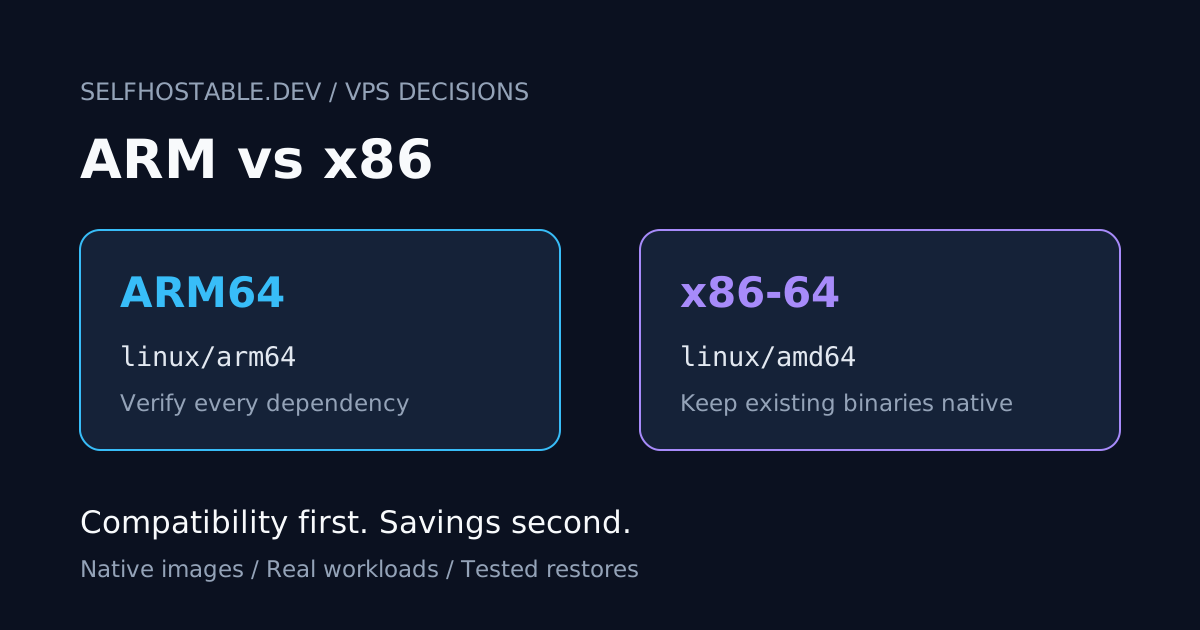
My default recommendation is boring: choose x86-64 when compatibility is uncertain. Choose ARM64 when you have checked the whole stack and the actual plan offers a worthwhile advantage. Neither architecture deserves a loyalty oath.
This is a documentation-based comparison, not a benchmark. I have not measured identical applications on competing VPS plans, and I will not pretend that an architecture label tells us which server is faster. The useful decision is whether your applications, dependencies, and recovery process fit the machine you are buying.
The short answer
- Choose x86-64 for an existing stack with unknown image support, proprietary binaries, or third-party plugins you cannot rebuild.
- Choose ARM64 for a stack whose exact image tags and native dependencies support it, especially when you can test before migrating.
- Stay on your current architecture when the potential savings are small and the migration introduces work you do not want.
- Do not choose either from vCPU count alone. CPU generation, resource sharing, storage, and application behavior also matter.
This question is separate from VPS vs dedicated server vs homelab. First choose where the workload belongs. Then choose an architecture that lets you operate it without clever workarounds.
What ARM and x86 mean in Docker terms
For the Linux servers discussed here, x86 means x86-64, commonly reported as x86_64 by Linux and called amd64 in Docker platform names. That Docker name includes compatible Intel processors too. It does not mean you need an AMD-branded VPS.
ARM means 64-bit ARM, commonly reported as aarch64 and called arm64 in Docker. A 32-bit ARM image is not automatically the correct choice for an ARM64 server. Read the platform entry, not just the word ARM in a README.
Containers package userspace software, but they do not make processor instructions disappear. An x86 binary still needs an x86 execution environment or suitable emulation. Docker is not a universal translator that comes free with every container.
A multi-platform image solves this by publishing multiple variants under one reference. Docker’s multi-platform documentation explains that an image index, also described as a manifest list, points to the platform-specific images. Docker normally selects the matching variant when you pull it.
That is why the same Compose file can work on both architectures. It is also why the same tag does not necessarily mean the same underlying image digest on both machines.
ARM vs x86 VPS: the practical comparison
| Decision | ARM64 VPS | x86-64 VPS |
|---|---|---|
| Container requirement | Matching ARM64 variants for every required image | Matching AMD64 variants for every required image |
| Native application dependencies | Must work on ARM64 | Must work on x86-64 |
| Existing x86-only binary | Rebuild, replace, or deliberately emulate | Can run natively if its other requirements match |
| Existing x86 server snapshot | Not a portable ARM migration artifact | May be usable if the provider and guest requirements match |
| Performance prediction | Requires workload testing on the actual plan | Requires workload testing on the actual plan |
| Best reason to choose it | Verified compatibility plus a useful plan advantage | Fewer changes for a stack already built around x86 |
I prefer to treat ARM compatibility as an acceptance test, not a marketing feature. If one required worker cannot run, the web application’s architecture support does not rescue the deployment.
Check the whole stack, not the homepage
A self-hosted app rarely consists of one image. It may have a database, cache, scheduled worker, search engine, document converter, browser automation service, and a sidecar that handles backups. Each component is a separate compatibility question.
Start from the resolved Compose configuration on your current host:
docker compose config --imagesRun this from the project directory with the same environment files you use for deployment. Repeat it for each Compose project, including optional services you actually depend on. Locally built images need their own source and build audit; a list of registry references cannot validate them.
Then inspect an exact reference. This example uses a standard database image to demonstrate the command, not to recommend a floating tag for production:
docker buildx imagetools inspect postgres:17Look for linux/arm64 and linux/amd64 in the manifest entries. The official command reference documents this registry inspection workflow. You need the Buildx plugin and access to the registry; authenticate first for private images.
Repeat the inspection with your exact deployed tags or digests. Support for a project’s current release does not prove support for an older pinned release. An image index digest can reference several architectures, while a digest pointing directly to one platform-specific manifest cannot magically select another.
Also check services with platform: linux/amd64 in their Compose configuration. That override may be intentional, but it prevents normal ARM64 selection. Do not remove it without finding out why it was added.
The dependency that ruins an otherwise sensible migration
Consider a hypothetical document stack. Its main web image, PostgreSQL image, and cache all support ARM64, but a custom OCR worker downloads an x86-only utility during startup. Image inspection passes for the first three services; the worker still fails.
This is a worked example, not a story about a migration I performed. It illustrates the difference between checking a manifest and checking an application. Startup scripts, plugins, Python wheels, Node native modules, and downloaded helper programs can introduce architecture requirements after the container image is pulled.
My rule: exercise the least ordinary component first. A custom worker with a native dependency tells you more about migration risk than a landing page that loads correctly.
Emulation is an escape hatch, not my hosting strategy
It can be possible to run an AMD64 image on ARM64 using QEMU and appropriate binary-format registration. It is not safe to assume that your VPS already has the required setup. A platform setting requests a platform; it does not install emulation for you.
Docker explicitly warns that emulation can be much slower for compute-heavy build tasks, including compilation and compression. That warning is not a numeric benchmark for every production application. It is a good reason to measure rather than assume the workaround is free.
For a disposable test or an occasional helper, I would consider emulation deliberately. For a database, document-processing queue, or service that runs all day, I would prefer a native image or a compatible server.
Building your own ARM64 image is another option, but it moves responsibility onto you. You now need repeatable builds, dependency support, security updates, and a way to track upstream releases. Saving on infrastructure while quietly adopting image maintenance is not always a bargain.
Which architecture is faster or cheaper?
There is no honest universal answer. An ARM64 plan might be attractive at one provider, while a particular x86-64 plan offers better latency or storage for your workload. Compare actual products, not imagined representative processors.
A vCPU on shared hardware is not a guarantee of a fixed amount of application throughput. CPU scheduling, host contention, CPU generation, and provider policies can affect results. Dedicated CPU resources are another variable, not something implied by choosing ARM or x86.
I would test the operations that users notice: upload a representative document, run a background processing job, load a dashboard, and perform a database restore. Watch memory use, response time, queue completion, and disk behavior. An idle container is a compatibility test, not a useful capacity benchmark.
Include storage, backup capacity, public IP charges, taxes, and transfer policies in your comparison. Check current plan pages rather than relying on an old price screenshot. Our IPv4 vs IPv6-only VPS comparison covers another way a cheap plan can create extra operational work.
I would not migrate a working stack just to win an architecture argument. The improvement should survive the cost of testing, moving data, and maintaining the new environment.
Backups are where architecture assumptions get expensive
A disk snapshot includes the guest operating system and installed software. An x86 guest disk is not a ready-to-boot ARM64 server image. Do not assume your provider can resize or switch an existing instance across architecture families.
The clean migration model is a new server with a supported OS, compatible application images, and restored application data. Recreate configuration and secrets separately. Keep the original machine available until the replacement passes your checks.
For databases, use the application’s supported migration method and the database’s documented backup tools. A logical database dump is generally a more portable starting point than treating a live data directory as an architecture-independent artifact. You still need compatible database versions, extensions, roles, and application expectations.
User-uploaded files may copy cleanly, but caches, generated binaries, virtual environments, and installed dependencies deserve more scrutiny. Rebuild environment-specific artifacts on the target. Avoid moving a host’s entire application directory blindly and hoping everything inside is portable.
Our backup guide is the companion task here. The backup is useful only after a restore test proves you can recover the services and data you actually need.
A migration rehearsal I would require
Use a disposable target server and a restored copy of the data. Keep it private, and prevent the test instance from sending real notifications, delivering email, or running duplicate external jobs. Two functioning schedulers can create a more interesting incident than one broken server.
Work through this checklist:
- Verify the new OS reports the expected architecture with
uname -m. - Inspect every required image reference and build local images natively where needed.
- Restore supported backups without overwriting your only good copy.
- Start the stack and read each service’s logs, not just the reverse proxy’s logs.
- Test login, uploads, downloads, background jobs, plugins, and database queries.
- Restart the server and verify services recover normally.
- Create a fresh backup from the new environment and restore it again.
For final cutover, plan how you will stop writes, take the last consistent backup, move traffic, and verify the target. Write down the rollback boundary too. Once users write new data on the target, pointing DNS back at the old database can lose those changes.
I prefer a documented recovery path over a heroic late-night migration. If testing exposes a required x86-only component, staying on x86 is a successful decision, not a failed experiment.
Where a VPN fits
Private administration and CPU compatibility solve different problems. Use SSH and appropriate private access controls for the migration environment; do not publish a temporary database or admin dashboard just because the server is disposable.
A commercial VPN can be relevant for selected outbound traffic or your administrator device on an untrusted network. It does not make an x86 image run on ARM, replace server authentication, or turn an exposed database into a safe one. If that separate VPN use case fits your setup, the following is an affiliate link.
🚀NordVPN
A commercial VPN option for selected outbound traffic or your device on untrusted networks, not a fix for server compatibility or access control.
Affiliate link — we may earn a commission at no extra cost to you.
My verdict: compatibility first, savings second
For a new stack built from verified multi-platform images, ARM64 belongs on the shortlist. For an existing stack with custom binaries or unclear dependencies, x86-64 is my safer default. The best VPS is the one that meets your workload and recovery requirements without making you maintain unnecessary exceptions.
Do not confuse native architecture support with proven application behavior. The former gets the image onto the machine; the latter keeps your service useful after the first restart, upgrade, and restore.
Your next step: run docker compose config --images on one stack and inspect every exact reference. If all required components support ARM64, rehearse a restore on a disposable ARM server before moving production. If they do not, keep x86 and spend the saved debugging time testing your backups.
Stay in the loop 📬
Get self-hosting tutorials, tool reviews, and infrastructure tips delivered to your inbox. No spam, unsubscribe anytime.
Join 0 self-hosters. Free forever.